
How to Split a PDF and Extract Only the Pages You Need
Pull individual pages or ranges from a PDF, keep the original intact, and check the new file before sharing it.
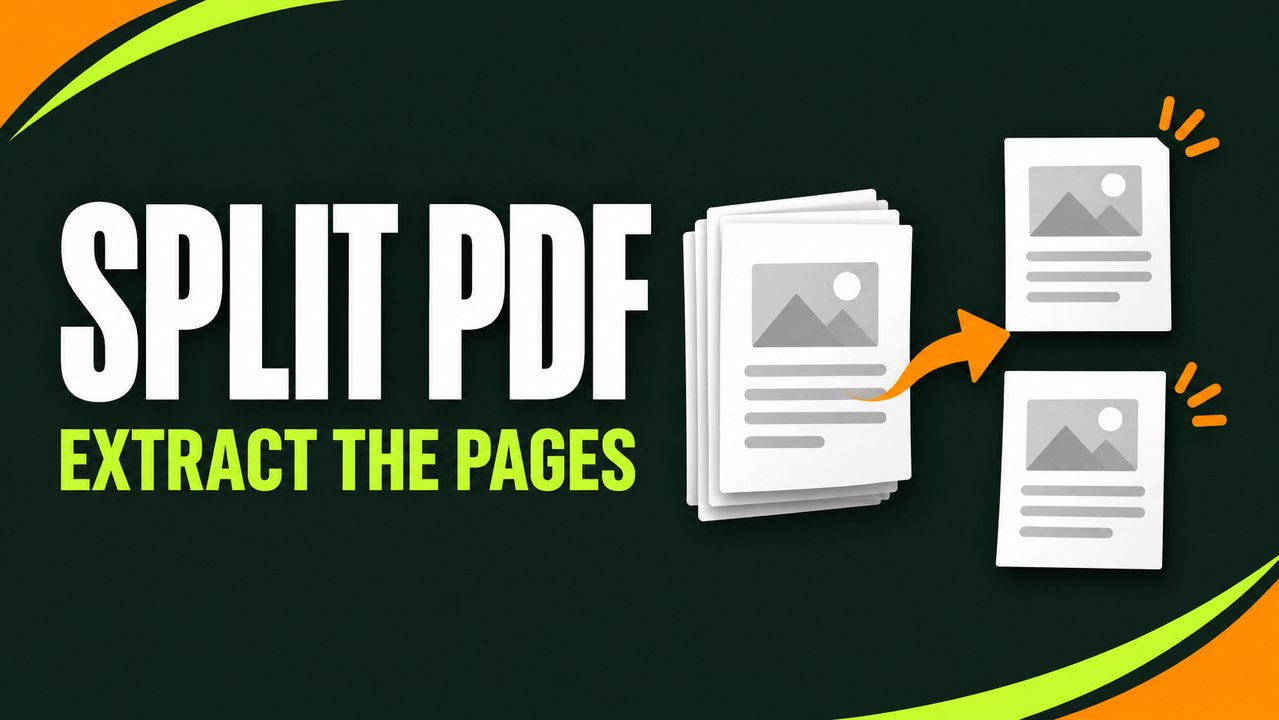
Extract PDF pages in three steps
Open the Split PDF tool and choose your PDF. Enter the page numbers or ranges you need in the Pages to extract field. For example, enter 2-4, 8 to copy pages 2, 3, 4 and 8. Click “Extract and download,” then open the downloaded file and check it. The original PDF remains in its original location. The download contains only the selected pages.
This tool accepts one PDF up to 40 MB and processes it in your browser. It creates one output per extraction. If you want three separate PDFs, perform three extractions and use a different range each time. Keep the original in a separate folder or give the outputs distinct names while you check the results.
Start with a small selection when you have an unfamiliar document. Extract its first two pages, open the result and make sure they are the pages you expected. Then return to the original and enter the full selection. This test is especially useful with a scanned book or report where the page labels shown in a viewer differ from the pages you count from the beginning.
Count PDF positions from the first page
The splitter uses the position of each page in the file. Position 1 is the first page, whatever number is printed on it. If a PDF starts with an unnumbered cover and two pages of preliminary notes, the page printed as 1 could be the fourth page in the file. To extract it, enter 4.
Open your viewer's thumbnail panel and count forward from the first page. Some viewers display both the printed label and the position out of the total. If there are two numbers, check the thumbnail sequence and use the position. Look at the heading or a distinctive sentence on the first page you want so you can confirm it in the output.
The same problem appears when a packet restarts its numbering at each chapter. Two pages may both be marked 1, but they have different positions in the document. For an application or report, write down the position and a short description, such as “position 13, budget notes.” This makes the page easier to check after extraction.
Enter individual pages and ranges
A single number such as 6 selects position 6. A hyphen joins the start and end of an inclusive range, so 6-9 selects four pages. Use commas to separate more than one selection. To select positions 1, 6 through 9 and 13, enter 1, 6-9, 13. Check that the last value is within the source's page count.
The tool preserves the order of your selection and removes duplicate page positions. Entering 8, 2-4 puts page 8 first, followed by pages 2, 3 and 4. Entering 2-5, 4, 7 produces five output pages because position 4 is already included in the range. If you intend to include the same page twice, you'll need a different workflow, such as extracting it separately and using the Merge PDF tool.
Use numerals and a standard hyphen. A dash copied from a formatted word-processing document can look like a hyphen even though it is a different character. If the tool rejects the entry, type the numbers and separators directly. Check that ranges start with the smaller number, and add the ranges in the sequence you want the recipient to read them.
Worked example: send the relevant pages from a report
Suppose a seventeen-page report has a cover at position 1, a project summary at positions 4 and 5, results from 8 to 12 and supporting tables from 13 to 17. A colleague requests the cover, summary and results. Enter 1, 4-5, 8-12. Expect eight pages in the download. The summary should start on output page 2, and the results should start on output page 4.
A different reader might only need the results and one supporting table. Start from the original report again. If the table is at position 15, enter 8-12, 15. Open the six-page result, look at the last page and check that its column headings match the table you meant to send. This is faster than discovering later that you extracted the summary table instead of its detailed breakdown.
If the results reference a figure on an earlier page, consider whether the recipient needs that figure to make sense of the excerpt. You might include it immediately before the results or put it at the end as supporting material. Document the choice in the accompanying message if the new order differs from the source. A shorter file should still make sense to somebody who has not read the full report.
Split one PDF into several separate files
To divide a PDF into multiple documents, extract the first range, save it under an appropriate name, and repeat for each range. For a 20-page pack with four equal sections, use 1-5, 6-10, 11-15 and 16-20 in four separate runs. Entering all four ranges at once creates a single combined extract, which is useful for selections but not for separate files.
Rename each download as soon as you verify it. Names such as orientation-part-1.pdf, orientation-part-2.pdf and so forth are easier to keep in order than several copies with automatically added numbers. If a file represents a particular part of the packet, a descriptive name such as orientation-safety-checklist.pdf may be clearer to the person receiving it.
Keep a note of which source and range produced each file if you need to repeat the work. For a long manual, a list of chapter titles and page positions can save time when an updated version arrives. Check the new version before reusing old ranges. A new introduction or a longer figure caption could have moved content to later pages.
Move a page before the others in a small extract
If you want the main page first even though it appears late in the source, enter that individual page before the other ranges. For example, 14, 2-5 puts the page at position 14 at the beginning. The output then continues with positions 2, 3, 4 and 5. The apparent page numbers printed on the source pages stay as they were.
This is useful when an executive summary is near the end of a scanned packet but the reader needs it first. It also works for a document where the main chart is near the appendix and several early pages explain it. Choose the order that makes the excerpt easiest to follow. If the rearranged order could confuse readers, identify the relationship to the original in a short cover note.
If you already have the required pages and only need to move or rotate a few of them, use the PDF Page Organizer. It is often easier to make that adjustment while looking at the selected pages than to rebuild a long expression. Keep a copy of the extract before changing it so you can compare versions if something shifts unexpectedly.
Deal with blank pages and scanned covers
Scanned documents often include blank backs, cover sheets or separator pages. Those still occupy positions in the PDF. If you count only pages with visible writing, you may enter the wrong positions. Check the viewer’s thumbnails for blank pages and keep them in your count even when you leave them out of the output.
Decide whether the blank page has any purpose. For a mailing copy, you may want to remove empty scanned backs. For a booklet intended for duplex printing, a blank page may preserve the position where the next section should begin. Review the file in the setting you intend to use. A tight digital extract and a print-ready extract do not always need the same page sequence.
If a page is sideways, extraction keeps the source page as it is. After downloading, rotate it with the page organiser if it is hard to read in your intended viewer. Verify the text and scan margins after rotation. Turning a page can make a scan easier to read, but it cannot recover a corner that was cut off when the scan was captured.
Protect the original if it is signed or fillable
Splitting copies selected pages to a new PDF. If a document is digitally signed, do not assume the signature verification survives in the new extract. Keep the original signed PDF and check with the recipient if they ask for a signed copy. A visible image of a signature and a verifiable digital signature are different things.
The same care applies to interactive form fields and document-level features such as bookmarks or embedded attachments. Check whether the features you need are present and usable in the extracted file. A PDF can look correct at first glance while a form field, link or document outline behaves differently. Use the original wherever its full features are essential.
A password-protected file may not open in the browser tool. Ask the file owner for a copy you are authorised to use. If it must remain protected, confirm how the owner or recipient wants the extract delivered. Keeping the original alongside any new version makes it easier to check which copy was received and what changes you made.
Extract pages without sharing the rest of the document
When somebody requests one part of a file, send only the pages needed for the task. For example, choose the page with a diagram instead of attaching a full training manual if the recipient only needs that diagram. Review the result before sending it. A neighbouring page may also contain needed context, but it may also contain information that has nothing to do with the request.
Splitting is different from redacting. If a page you keep contains a private address, financial detail or internal comment, selecting the page preserves its visible content. Review it using your organisation’s approved privacy process before distribution. Covering something with a temporary annotation is not a substitute for checking what remains in the delivered file.
The tool processes selected PDF files on your device. That does not change the rules you or your organisation follow for handling the document. Consider where the resulting file is saved, especially on a shared computer, and who can open that folder. If you make a temporary extract, handle it with the same care as the original document.
Put a missing page back into an extract
If you discover that the output is missing a page, you can repeat the extraction with a corrected range. This is usually easiest when all the pages come from one PDF. For instance, change 4-6, 9 to 4-7, 9 if position 7 was unintentionally left out. Check the revised page count and the part of the document near the correction.
If the missing page comes from another PDF, extract it and then merge it with the relevant sections. Put it where the reader expects to find it. Our guide to merging PDFs in the right order explains how to insert a file in the middle by dividing the main document into two parts first.
When a correction changes the number of pages in a file, update any references that point to positions in the extract. This matters if you have already prepared a contents page or a message directing the recipient to a specific page. Printed numbers in the source do not automatically change, so it helps to specify which numbering system you are using.
Fix a range or file error
If extraction fails, open the original in a normal PDF viewer. Check that it loads every page and that you have the complete download. A file selected before its download finished may be incomplete. If your viewer asks for a password or cannot open the file, the browser splitter may be unable to read it as well.
Check the entered range against the total page count. For a twelve-page file, position 13 is out of range. Inspect the field for a typo, a special dash, a reversed range or a missing comma. If a mixed selection seems difficult to debug, start with a single valid position and then add each range in turn. This is a quick way to identify which part caused the error.
If everything looks correct, check the 40 MB input limit and device memory. A document can be under the limit and still have many complex pages. Close unneeded browser tabs or work with a smaller copy if the application can open one. For recurring exports from an office application, it may be simpler to select the required page range in the original application and export it directly.
Check the downloaded result before sharing
Open the file you just downloaded and confirm its name and size. Compare the page count with your planned selection. Look at the first page, the last page and any point where the range jumps. If you chose 2-4, 8, confirm that the fourth output page is the original page at position 8. Count alone cannot tell you whether the right entry was used.
Check that the extract is readable and contains the context its recipient needs. Try any link, form field or document feature that matters for the task. If the output must be printed, use a print preview and inspect pages that were sideways, unusually large or scanned at an angle. Correct problems before you upload the file to an application that is harder to change later.
When the packet has several recipients, keep each extract separate and name it clearly. A small internal excerpt and a complete external version can coexist without confusion if the filenames describe the intended use. Compare the file attached to the message with your checked copy before you send it.
Choose the right workflow for the next job
Use Split PDF when your source is one file and the task is to copy out selected pages. Use Merge PDF when you want to combine multiple source documents. Use the page organiser when the main job is changing the order or orientation of pages you already have. For image files, start with Image to PDF before including them in a PDF packet.
If the output keeps changing, hold onto the original inputs and name the working exports sensibly. It is usually faster to reproduce a clean extract with the corrected range than to repair several versions of the same download. Keep a copy of the final file in the place where you can find it, and send only the checked version.
For a simple extraction, the complete workflow still fits in one line: select the source, type the page positions, download the result and check the boundaries of the selection. Taking that final minute to review will catch most errors before someone else has to ask for a replacement.
If you need to keep a record of what was shared, save the source filename, the requested page positions and the name of the checked extract. A note such as “Training manual version 3, positions 4–7 and 12” is enough for colleagues to reproduce the same result later. Record the source version as well as its page numbers whenever the manual is updated frequently.